
We’ve designed hundreds of websites, including eCommerce sites, and one question we get asked a lot is what product attributes are and how they make a difference to product data. This guide explains the role of attributes in WooCommerce; what they are, how they add value and the common pitfalls to avoid.
What are product attributes?
Think of an attribute as a piece of information that helps you build out a product’s specification, for example, its size or colour.
Attributes help you shape your product data, and are especially important in determining the difference between a simple and a variable product within WooCommerce.
| Simple vs variable product Simple products are standalone items with a single SKU and no variations, while variable products are items that offer multiple variations (e.g., size, colour), each with its own SKU and attributes. |
Attributes usually consist of a name and its associated terms. For example, the name of the attribute might be ‘colour ’, and the terms for this might be red, green, blue, yellow, etc.
Attributes are also useful for helping users filter specific results within an archive page, but we will get to this a little later in the blog.
How attributes are used in WooCommerce
Attributes are used in a few different ways within WooCommerce.
1. Creating variable products
The first and most obvious one is for creating variable products – in this case, they are used to drive the variation drop-down for that specific product.
In the example below from Barrier Depot, there are two variations for the user to pick from: Height and no. of pieces.
You could use one attribute, two attributes, maybe even three or more; it all depends on how you structure the product.
For example, if the product you are working on is a ‘Black Crewneck T-shirt’, then you’d likely use one attribute of ‘size ’, and the terms would be S, M, L, and so on.
If your product was just ‘Crewneck T-shirt ’, then you would likely have to use two attributes: ‘Colour’ and ‘size’, with terms for each.
2. Layered navigation and filtering
Attributes are also really useful for layered navigation and filtering. In most cases, attributes are used on a category page or in the product archive.
Let’s say you were on a website that sold plastic components. You might be looking for a product made from HDPE specifically. In this case, you’d want to filter to ‘HDPE’ using the material variable.
The products appearing on the category page would be filtered to components made from HDPE, making it easier for the user to find what they need.
3. Helping buyers make comparisons
Even if your attributes aren’t going to be used to create variable products, they’re really handy for the specification area on the product page itself.
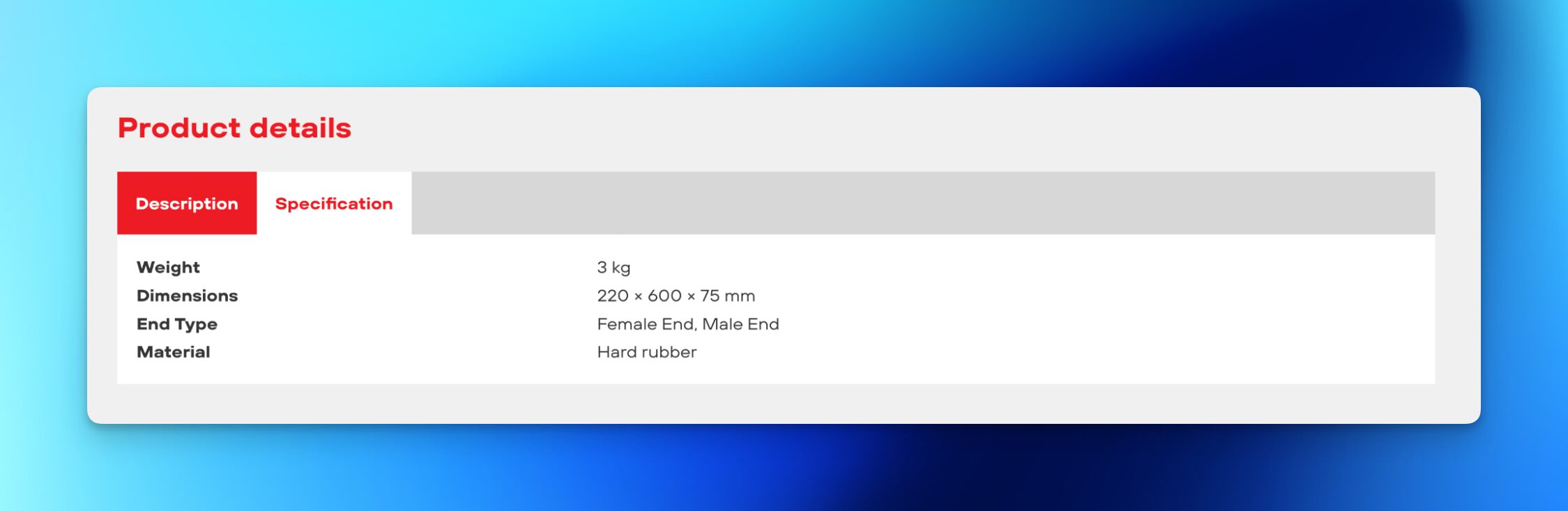
You might see on some websites that this is displayed as an ‘Additional information’ tab, or it might just be tabbed as ‘Specification’ as in the example below.
When you click on this, you’ll be able to see all the product’s attributes – its material, colour, size, plus anything else that you think the user will find useful in helping them decide to buy the product.
Some themes and plugins within WordPress also allow you to pull the attribute data to allow comparison tables to be built.
Again, this is really helpful for UX (user experience). It allows users to compare products based on their specifications, which could make the difference between making a sale – and not making a sale.
Why do WooCommerce attributes matter?
You’ve probably guessed already that I’m passionate about getting this bit of a website build right. Attributes are so important for building a skeleton that is good for users and is easily scalable.
Foundation for scalability
Imagine adding 500 products without any attributes; it would be carnage. Considering your product data carefully and structuring it correctly with uniform attributes will set your website up for success.
Better user experience (UX)
If users can find exactly what they need by either filtering, using comparison tables, or simply scrolling between each product looking at the specification tables – then they are more likely to make a decision to buy than if you didn’t have any attributes.
Faster product discovery
You’re likely to see a higher conversion rate if customers can get to what they need quicker. Product attributes are discoverable in search bars, so if you structure your product data correctly with good attributes, you’re on to a winner.
Improves trust
Having organised and structured data also helps customers build trust in your website. Customers like to see specifications and information before they buy; if you don’t have this, or things are a little bit messy, then they might leave the site.
Reduce return rates
By structuring your data correctly and assigning the correct attributes to a product, a customer will know exactly what they are buying. This will help reduce the likelihood of a return.
Global vs local attributes: Understanding the difference
There are two ways that you can add products to WooCommerce: globally or locally.
Nine times out of ten, you’ll need to add them globally, as this will help with everything we’ve already talked about: filtering, specifications, etc.
Global attributes
Global attributes are found under the product section and are reusable across all products that you add. They power filters, variable product creation, specification data, and, in my opinion, are the best way to add your attributes.
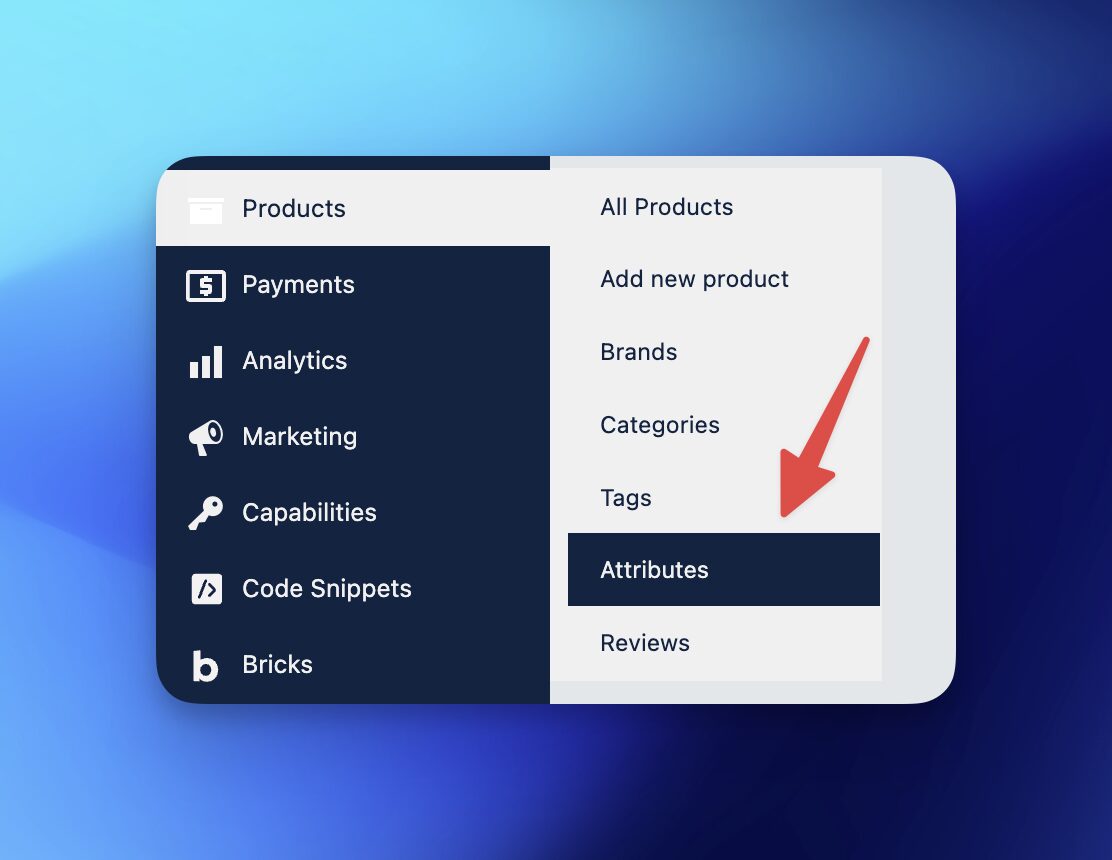
You can also manage the terms for each attribute in this global area, so if you’re doing this in bulk, it’s always much easier and more efficient.
I often see clients rush into adding products; they forget which attributes they need to use, or they don’t fully understand how to add them globally, leading to duplicates and messy product data.
Local attributes
Think of local attributes as custom attributes. They are usually added directly to the product, not in the global area I’ve talked about above.
You’ll find it in the product data area (see below).
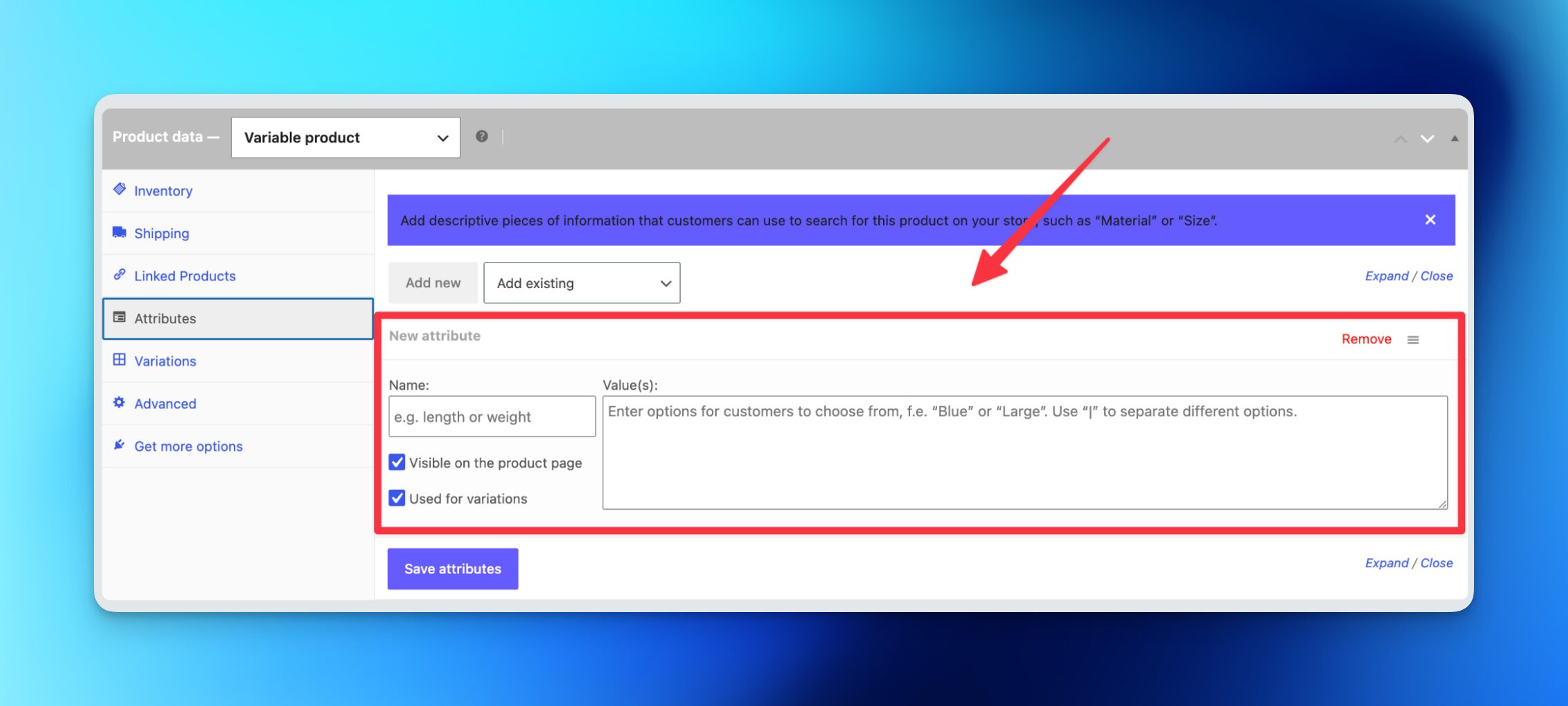
If you add an attribute locally, then that attribute will only appear in the attributes section of the CMS (content management system) for that one product.
The problem with adding via this method is that if you need to use it again for another product, you’re likely going to double up on your work by adding this over and over again. Hence why adding things globally is usually the better option.
If you have a product where an attribute needs to be added and is a one-off, then adding it locally is fine. However, I’d still advise clients to add it globally because, who knows, you might need it again in the future.
Five common mistakes to avoid
There are some common pitfalls – that while avoidable – trap a lot of our clients.
1. Inconsistent naming of terms
This one really bugs me, sorry guys.
Let’s say you have a colour attribute, and over time the terms ‘Grey’, ‘grey’, and ‘Grey/silver’ have been added – WooCommerce sees these as separate terms. This means your filters break, things start to look messy, and your visitors see three options instead of one. Pick a naming convention and stick to it.
2. Using local attributes when you should be using global
If there’s any sort of possibility that you’re going to use an attribute more than once, make it global.
I see clients add custom attributes locally all the time, then six months later they’ve got 200+ products, and none of them can be filtered because the attributes aren’t connected. Fixing that afterwards can be a tedious job, trust me.
3. Not thinking about the order of your terms
By default, terms display in the order they were added. If your sizes show up as ‘XL’, ‘S’, ‘L’, ‘M’ in the product dropdown, your users are going to be incredibly confused. It’s a bad look.
Set a custom order on your terms so everything appears in a logical order. It could be alphabetical, numerical, or a specific order that makes sense to you and the user.
4. Forgetting to set visibility
You’ve added the attribute, you’ve set the terms, but you forgot to tick “Visible on the product page.”
Now your specs aren’t showing in the ‘Additional Information’ tab, and you’re wondering why. It’s a small checkbox that’s easy to miss, especially when you’re bulk-adding products.
5. Completely ignoring your slugs
I mentioned earlier about letting WooCommerce auto-generate your slug for you. This is fine most of the time, but it’s worth going back and reviewing what it’s created for you, especially if your terms are long and descriptive.
Slugs end up in your URLs when customers use filters, so ‘/colour/ral-7016-anthracite-grey’ is a lot less clean than ‘/colour/anthracite-grey’.
It’s a small clean-up job that’s a lot easier if you do it as you go, rather than trying to fix lots of products in bulk later on – especially when the URLs have already been found and indexed by Google.
The Marketing Labs’ take on it
Adding attributes can seem like a simple job, but sometimes they can be tricky to get your head around. Get them right, and they can genuinely transform the eCommerce experience for the user.
Have a clear idea of what attributes you need early doors.
Add them globally, keep your term names consistent and don’t treat the attributes as an afterthought. A little proactive planning beforehand can save hours of cleaning up later on, all while providing your users with a much better shopping experience.
If you’re currently sitting on a site with messy or missing attributes, it’s not too late to get back on track and get them sorted. You could perhaps start with your best sellers and work through the others over time.