
This guide will cover all things WooCommerce products, including types of products to attribute details and other specifications.
Types of WooCommerce products
In WooCommerce, you will encounter 3 main unique types of products: simple, variable, and variation. Each of these types of products serves a unique purpose for the product itself and how a customer can purchase the product.
There are also two further options for external/affiliated products; this is primarily used when selling a product on another website’s behalf, and then there are grouped products. Grouped products are used if you wish to sell 2 or more products as a single unit. Both of these are more situational than the other products mentioned and are not as commonly used.
Simple Product
Simple products are designed for products that have no other variations; they are purely stand-alone products that have no options in size, colour or any other attribute which you may use. This means that when a customer goes to purchase this product, they will be met with an “add to basket” rather than a “choose options” prompt.
An example of a simple product could be produce you will buy from a supermarket, such as a punnet of fruit may only have 1 size and weight, and no other options for that product.
With simple products, the only option a customer will have for customising is the quantity of the product, as this does not affect which product they will receive.
Variable product
A variable product is a product that will have multiple options; this means that the customer can choose the size, weight or other specifications that may suit the product in question. When looking at a variable product, the customer will face 1 or more options to choose what product they receive.
An example of a variable product could be shoes. Shoes can come in multiple colours and sizes, so a customer cannot just say that they want to order the shoe by name (without specifications), as there are multiple options to match this.
Variation product
A variation product is the outcome of the selections made on a variable product’s options. A variation would be the set size and colour of a shoe, for example. Variations are unique to one another; even if the variations are of the same variable product, this means that they will require unique SKUs from one another, and will not match the variable product itself.
Variation products appear when a variable product is made; they can be found here:

You can generate all variations if you sell all of the attribute combinations listed. Attributes for variable products are covered later in this guide.
Product SKUs and inventory management
When you start building out a product, one of the first areas which you will come across is the “Inventory” section of the product, as seen below.
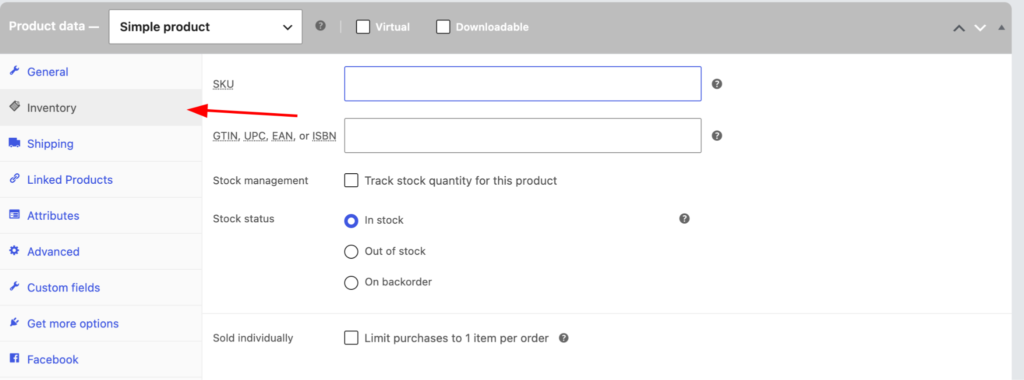
In the inventory section, this is where you can set up your Stock and SKUs.
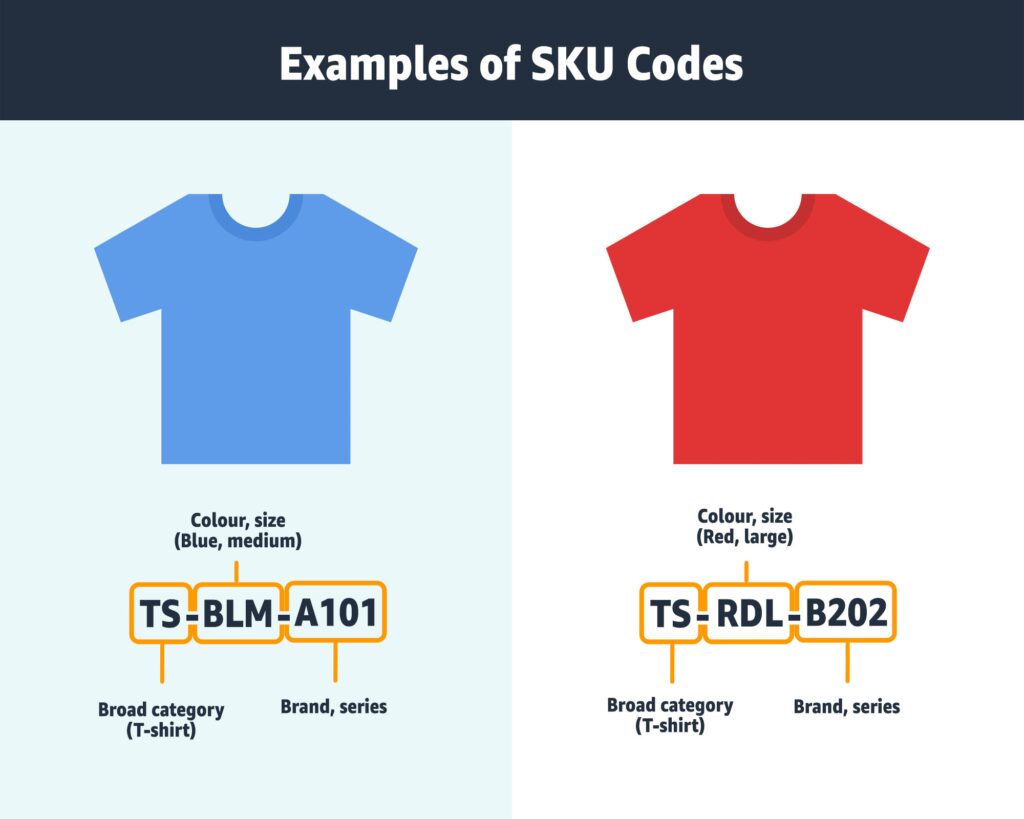
SKUs, these are unique identifiers for each product (this is why each variation needs a unique SKU from one another. SKUs can be manually built out to match SKUs given from suppliers, or to match an internal format. I
If you do not have an internal format already, this is an example of how SKUs can be built to be uniform and understandable:
In regard to stock levels, there are 2 ways to manage stock: you can either set a toggle of “In stock”, “Out of stock or “On backorder” or set a manual number, which will update as purchases are made on the website. If you choose to set a toggle from the 3 mentioned previously, these will not update automatically when stock is purchased, and are less recommended than a manual stock count to start with.
Below, each of the toggles, as well as manual stock management, is explained.
In stock
If a product is set to “In stock”, a customer can purchase this product, regardless of whether you in fact have the stock available to sell. This can cause issues if a customer does happen to order from an unupdated product, or orders a higher quantity than is available.
Out of stock
“Out of stock” means that the customer will not be able to purchase the product, regardless of what stock you may have. This can cause complications if you gain stock levels and fail to update the website to “In stock”.
On Backorder
“On backorder” means that the product is not currently available, but will be soon. This means that the customer can order the product, but will not receive it until stock is available. This can cause issues with wait times, as it may go against your normal shipping wait times.
Set stock manually
To set stock manually, you first need to check this box:
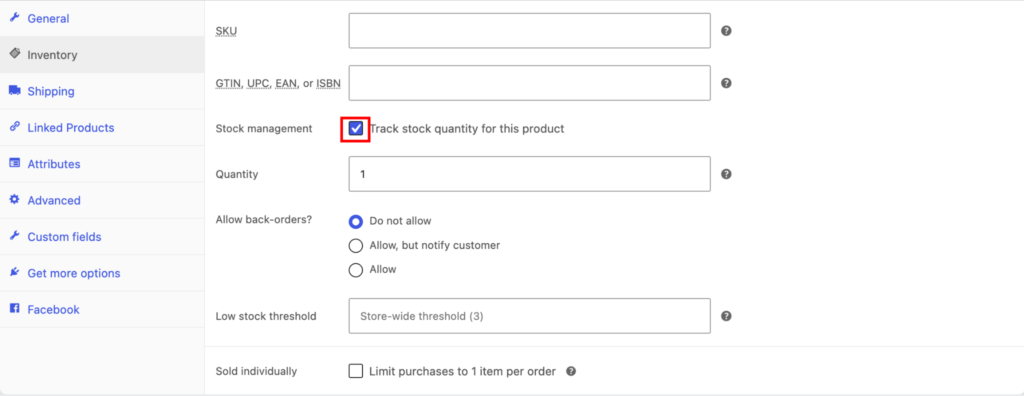
From here, you can set the quantity of the product that you have in stock, whether you wish to allow backorders for the stock, and the “low stock threshold”.
The difference between this manual quantity and the toggles is that when a customer buys a product with 100 in stock, the quantity will change to 99 automatically; this is particularly useful when stock reaches the low stock threshold.
The low stock threshold is where the product will display low stock to the customer, meaning it can limit their order quantity to the stock remaining. In comparison, using in stock could let a customer exceed this limit, causing issues with stock management.
Attributes
Attributes are used to define the options for all products; this includes simple and variable products. Attributes can be found here:
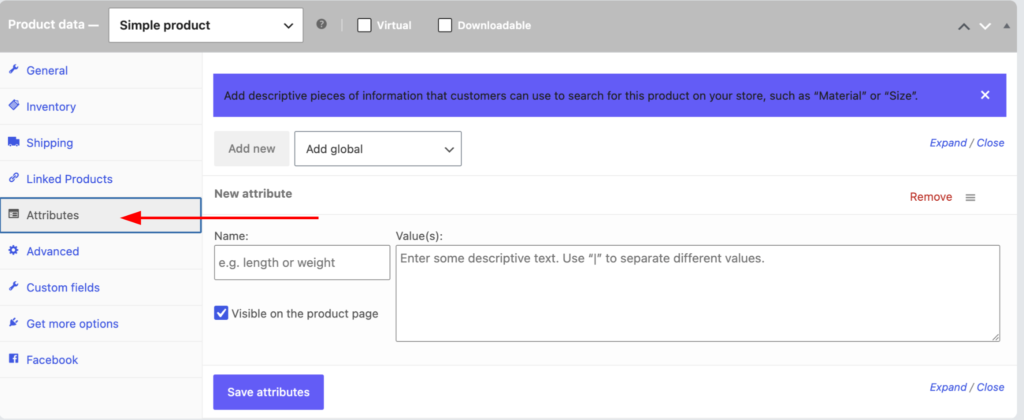
Attributes are the defining features of the product; this includes length, weight or other applicable attributes that suit that product.
For simple products, you can enter the name of the attribute (such as length or weight), then a value for this name; this could be 400g for weight.
For variable products, you use a vertical bar/pipe, which looks like “|”. So, using weight as an example, a product may come in 200g, 400g and 600g weight options; this would be displayed like this:
200g|400g|600g
This will let you choose these as options when creating your variation products.
How attributes affect shipping
Attributes directly correspond with the shipping rules that you will have set in place. Commonly, shipping rules are defined by the weight and size of the item being shipped, so having these attributes set correctly makes shipping rules significantly easier to follow.
Short and long description
Despite both being descriptions, they serve different purposes and should be formatted differently.
Long description
The long description is found at the top of the product page.
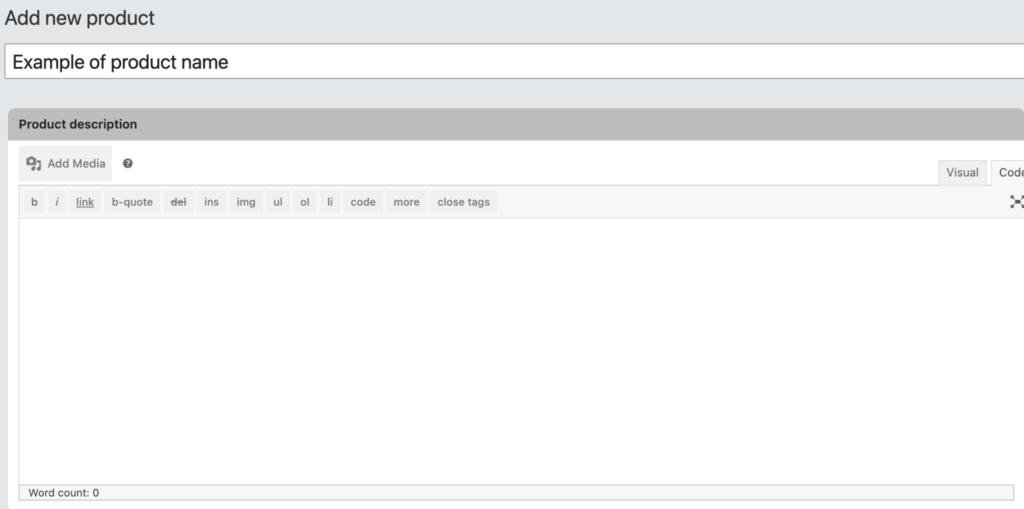
The long description’s purpose is to show an in-depth overview of a product; this means it may cover the usage of the product, featuring full sentences or paragraphs. The long description should always be longer than the short description and not be focused around bullet points.
Short description
In comparison, the short description is focused on a short, snappy and engaging description. This is often done through a series of bullet points that display the key features of the product. The short description should capture the customer’s attention and encourage them to either purchase the product or check the long description to see more detail on the product.
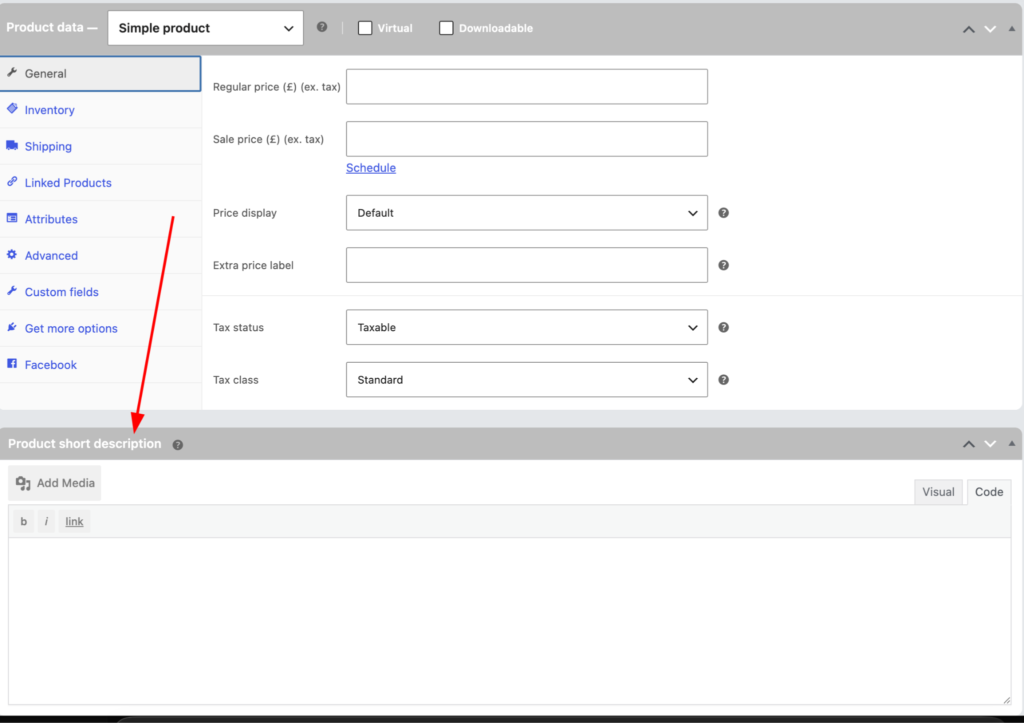
The short description can be found a bit below the long description:
How to build out different types of WooCommerce products
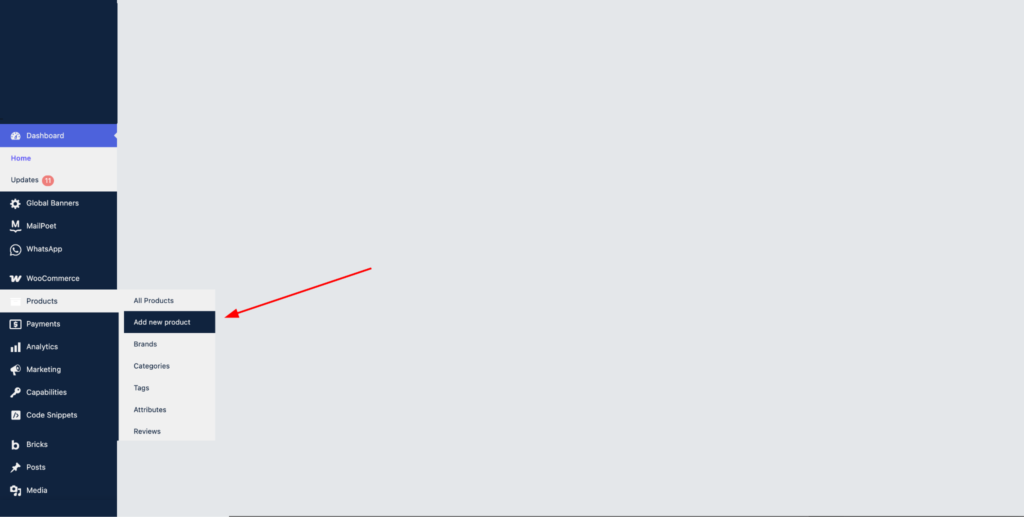
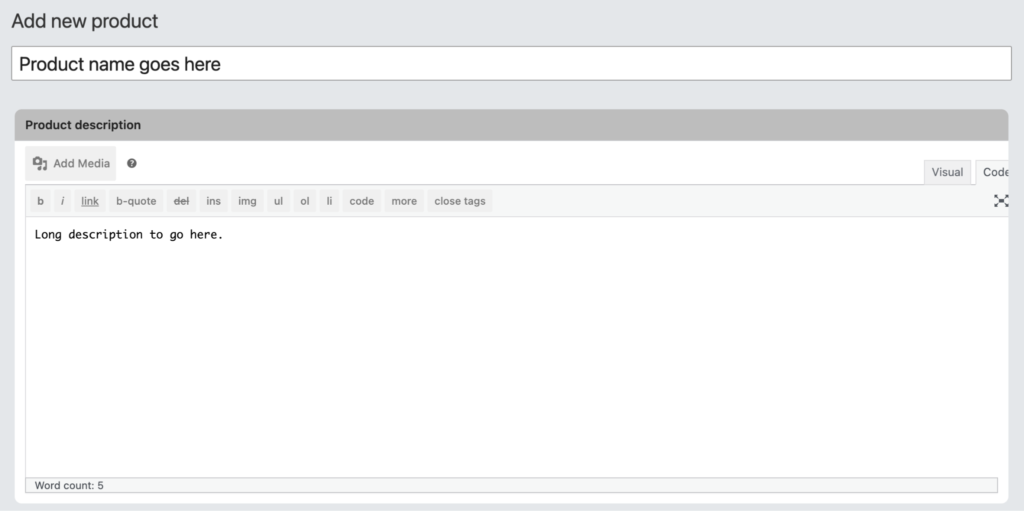
To start building out your product on WooCommerce, go to the “Add new product” section of WooCommerce.
From here, you can start by adding your name and long description, as seen below:
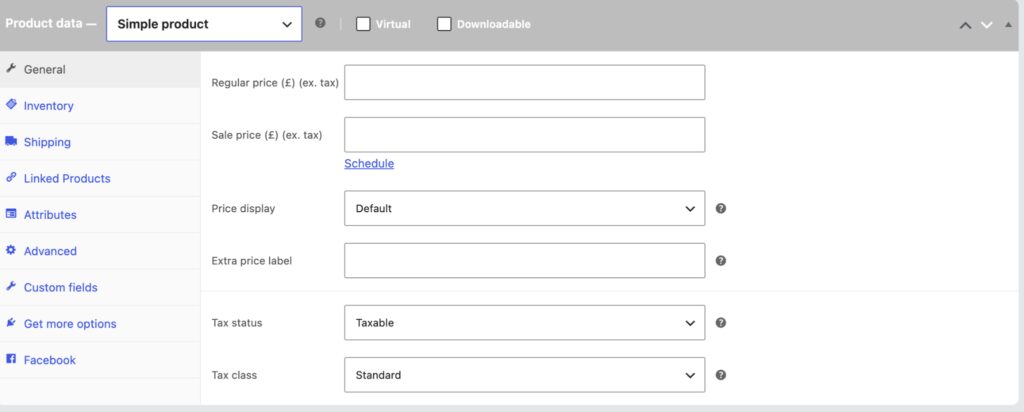
Following this, you can assign the price, product type, SKU (s) and attributes.
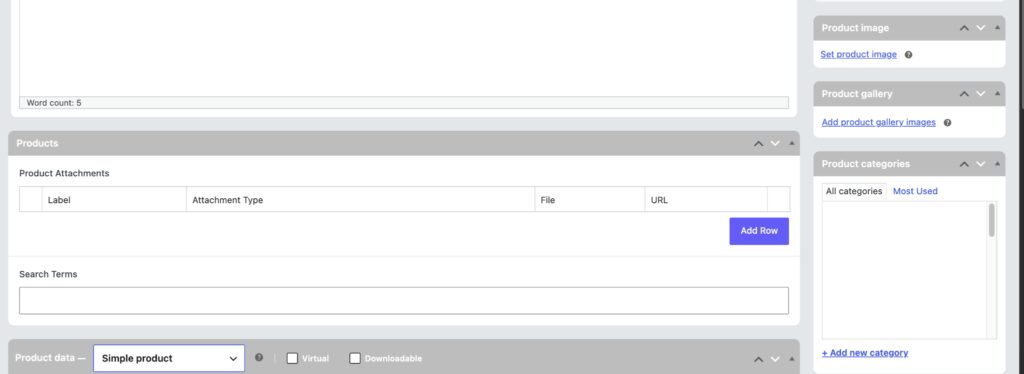
From here, you can assign the product image, gallery and appropriate categories.
From here, you can add the short description and any appropriate additional shipping rules, unique to this product.
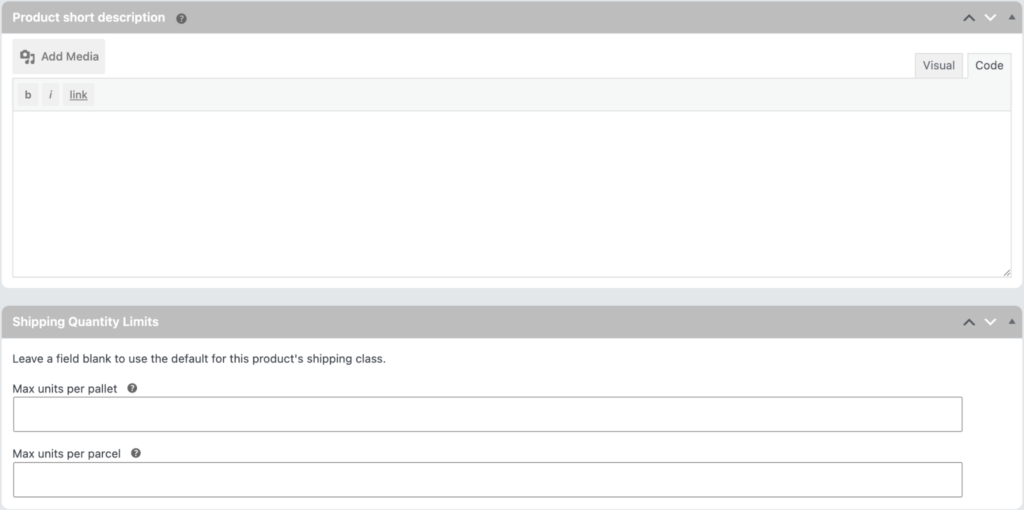
And finally, you can add the short description and any appropriate additional shipping rules, unique to this product